About Hardware Builder
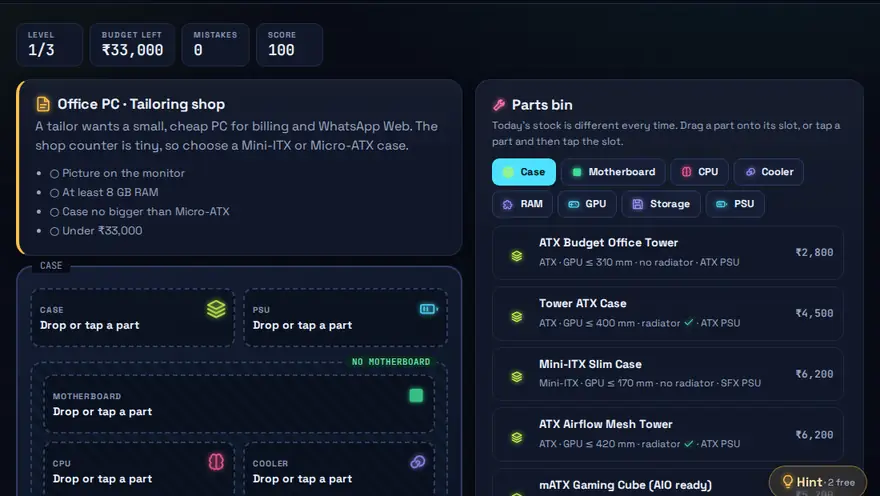
A free build-a-PC game for learning computer parts. Drag CPU, RAM, motherboard, storage, GPU, PSU and cooling into a case — and make sure everything is compatible.
Skills you practise
- Hardware identification
- PC assembly
- Compatibility
How to play
- Read the build order brief, then drag parts into the matching slots.
- Watch for compatibility: socket, RAM type, PSU wattage.
- Press Power On to test your build.
Why this skill matters
Every IT support, repair or system-building job starts with knowing what is inside a computer and which parts work together. A wrong RAM type, a CPU that does not fit the motherboard socket or a power supply that is too weak will stop a build from working, and a customer will not pay for a PC that does not start. Practising the build order in a safe simulator lets you make those mistakes for free. It suits students who want a computer hardware game to learn the parts and what each one does, and it doubles as PC parts compatibility practice before you spend money on a real build.
Key terms you will meet
- CPU (processor)
- The chip that runs program instructions. It must match the motherboard's socket, for example AM5 or LGA1700.
- RAM
- Short-term working memory. Modern boards use DDR4 or DDR5, and the two are not interchangeable.
- Motherboard
- The main circuit board that connects every part. It decides which CPU, RAM and storage you can use.
- PSU (power supply)
- Converts mains power to the voltages the parts need. Its wattage must cover the CPU and graphics card with some headroom.
- Storage (SSD / HDD)
- Where files and the operating system live. An SSD is much faster to boot and open programs than a hard disk.
- Cooling
- A heatsink and fan or liquid cooler that keeps the CPU from overheating and slowing down.
A worked example
A customer wants a PC for office work and light photo editing. You pick a CPU first, say one with an AM5 socket. That choice forces a matching AM5 motherboard, which in turn takes DDR5 RAM only. You add an SSD, check that the cooler supports the socket, and choose a power supply with comfortable spare wattage. Finally you press Power On. If any part is incompatible, the game tells you which one and why, exactly the way a technician would trace it on a bench.
Common mistakes to avoid
- Buying DDR4 RAM for a DDR5 motherboard (or the other way round).
- Forgetting the CPU cooler or thermal paste, which causes overheating and shutdowns.
- Choosing a power supply by price alone and ignoring the wattage the parts need.
Questions people ask
What should I check first when choosing PC parts?
Start with the CPU socket and the motherboard that fits it. The motherboard then decides your RAM type, storage connections and case size.
Is this game a replacement for real hands-on practice?
No. It teaches the thinking and the order of steps. Pair it with handling real parts in a lab or workshop.
Can I learn how to build a PC without buying parts?
Yes. A build simulator lets you place the CPU, RAM, motherboard, storage, GPU, PSU and cooling in a case and warns you when two parts are incompatible, so you learn the order and the rules first. Hardware Builder does this for free in your browser.
Level: Beginner · Best for: Beginners · Part of the Hardware & Systems path. Pass it to earn the “Hardware Builder Master” badge and a game certificate.
Related: Troubleshoot It!, OS Installation Challenge · Next: Troubleshoot It! · All 18 games · About · IT glossary
Quick answers: How do you build a PC step by step? · How do you fix a PC that will not turn on?
Content reviewed by Hritik · 2026-11-11.